


Define preferred parts and manage part numbers in COLLABORATION 3Dfindit

What Are Preferred Parts?
Preferred parts are go-to components that your team agrees to reuse across projects. By setting these parts as the standard, you can cut down on unnecessary duplicates and avoid reinventing the wheel. This not only speeds up your workflows but also helps you save time and reduce costs by reusing reliable, approved parts.
Using the Preferred Parts Filter
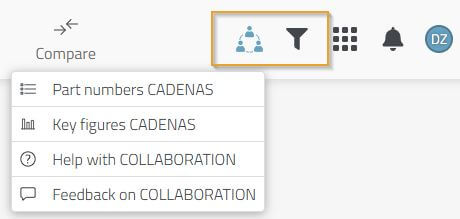
Once you’ve assigned part numbers to your first components, you can start filtering for preferred parts. Just click the filter icon in the top-right corner of the COLLABORATION 3Dfindit menu. You can toggle it on or off anytime to quickly find the parts your team has standardized.
How to define a preferred part in 3Dfindit
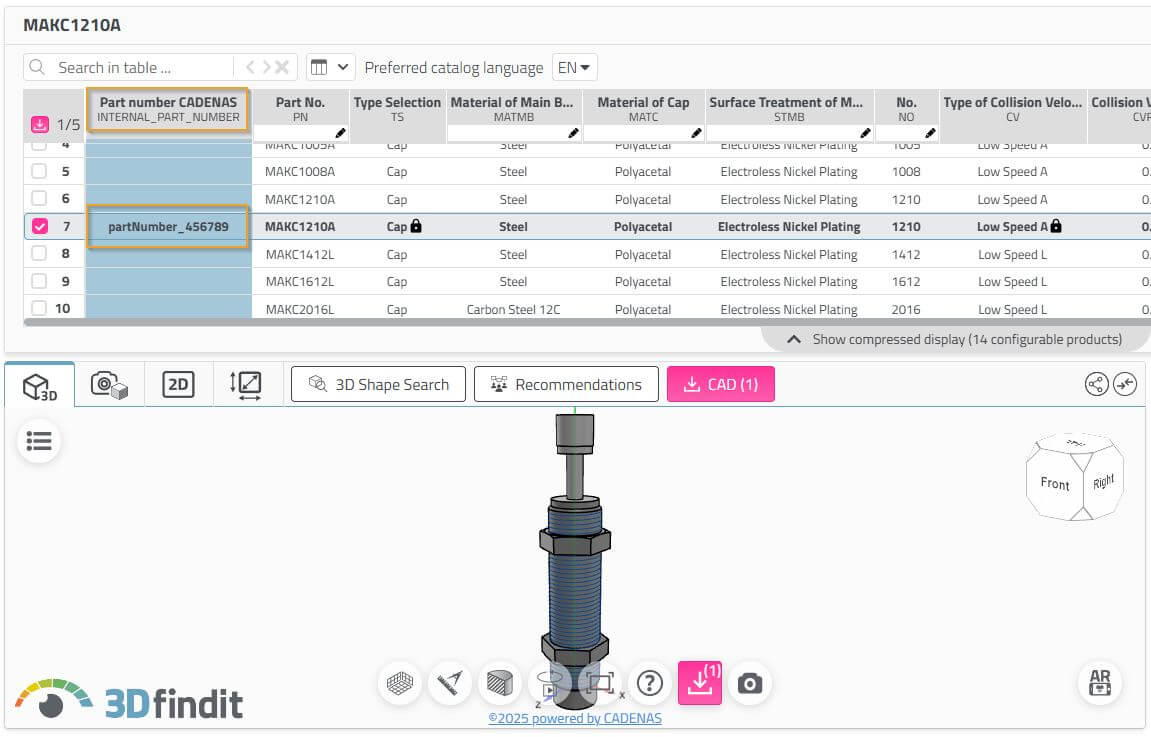
In COLLABORATION 3Dfindit, preferred parts are easy to define. When downloading a part, you assign a part number, this marks the part as preferred and makes it visible to the entire team.
For example, the part number can be a unique ID from your ERP or PLM/PDM system.

The part number will be visible in the selected configuration of the component.
ATTENTION: The part number is included in your organization's search index. This means that there may be occasional delays before the part number appears directly in the search results or the product.
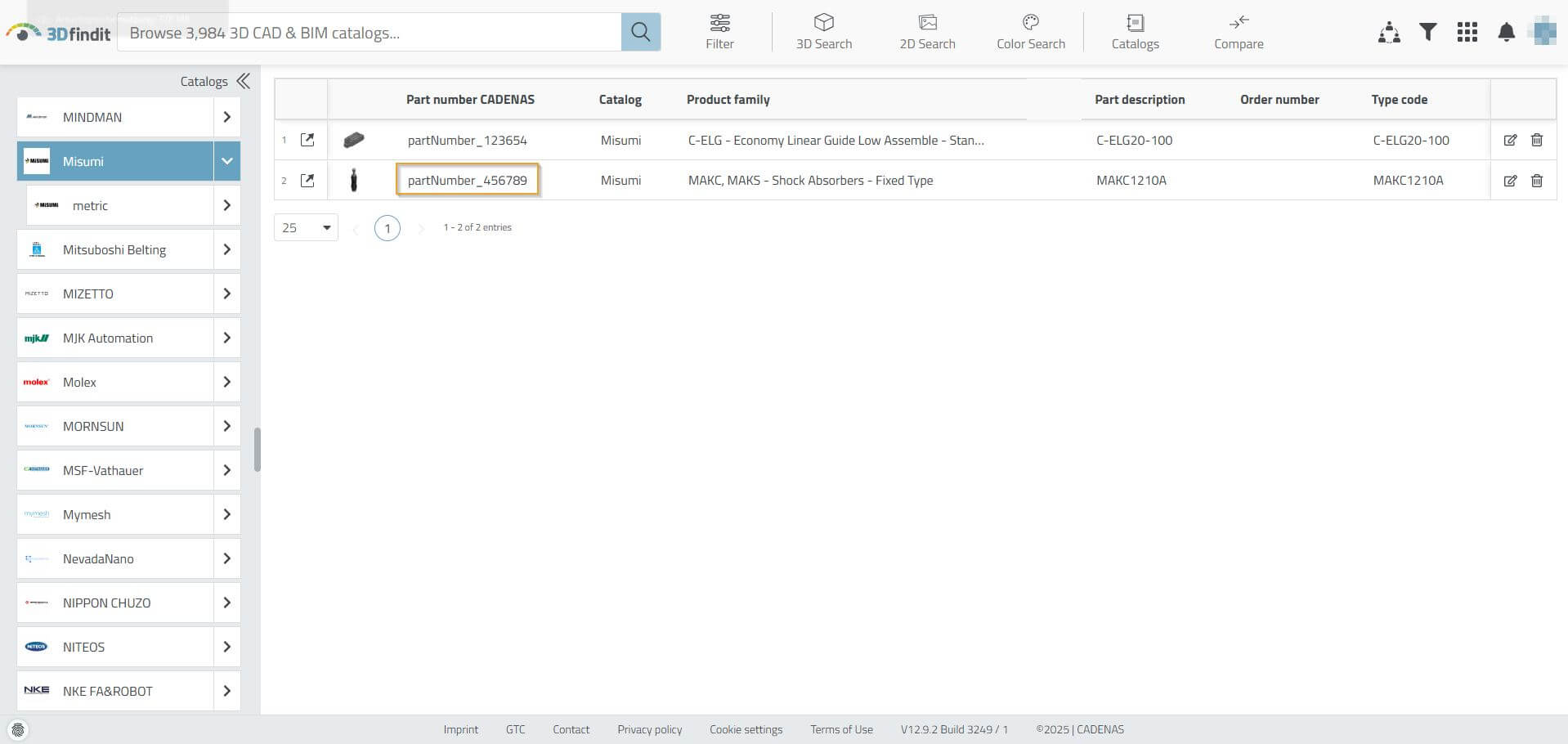
You can find an overview of all parts to which you have assigned an individual part number in the COLLABORATION 3Dfindit Part Number Overview.
This lists all parts. You can also filter this view by catalog using the left-hand column.
Assigned part numbers can be managed by all users in your organization by default. If you want to restrict access to management, you need an administrator account. Components with assigned part numbers are also displayed differently in the search results. Our tutorial on "Filtering for preferred parts" shows you exactly how to use this filter function.
Editing or deleting preferred parts
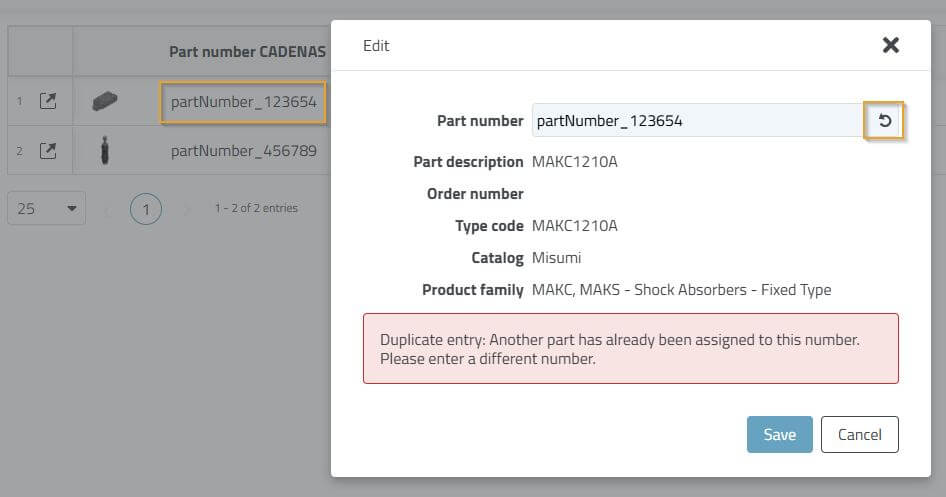
In the COLLABORATION 3Dfindit part number overview, you have the option to adjust or completely delete part numbers. To do this, click the "Edit" or "Delete" icon in the part number overview.

You can now reassign the part numbers. Please note that you cannot assign duplicate part numbers. If you wish to restore the old number, you can reset it using the arrow to the right of the text.
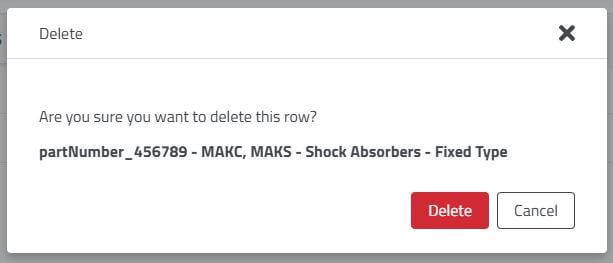
Before deletion, you will be asked again whether you really want to remove this part number.
Please note the limit on preferred parts
Each organization can define up to 100 preferred parts free of charge. If you want to manage more components, you can increase your capacity with additional packages after the Early Bird program ends.
Not yet an Early Bird participant?
Secure your free access to the COLLABORATION 3Dfindit Early Bird program and test it in your company. Use preferred parts, analyze key metrics, and optimize your parts management.
